A Small Business Guide to Implementing Multi-Factor Authentication (MFA)
Have you ever wondered how exposed your business might be to cyberattacks? You’re not alone. Nearly 43% of cyberattacks target small businesses, and many of them succeed because of weak or stolen passwords.
One of the simplest and most effective ways to reduce this risk is Multi-Factor Authentication (MFA). MFA adds an extra step to the login process, making it much harder for attackers to get in—even if they steal a password.
This guide walks you through what MFA is, why it matters, and how to implement it in your small business without adding unnecessary complexity.
Why Multi-Factor Authentication Matters for Small Businesses
Small businesses are no longer flying under the radar. Attackers know that many smaller organizations lack strong defenses, which makes them easy targets.
A single stolen password can lead to:
-
Email account takeovers
-
Data breaches
-
Financial fraud
-
Ransomware attacks
MFA helps stop these attacks by requiring more than just a password. Even if an attacker has login credentials, MFA blocks access unless they pass an additional check.
In today’s threat landscape, MFA is no longer optional. It’s a basic security requirement.
What Is Multi-Factor Authentication (MFA)?
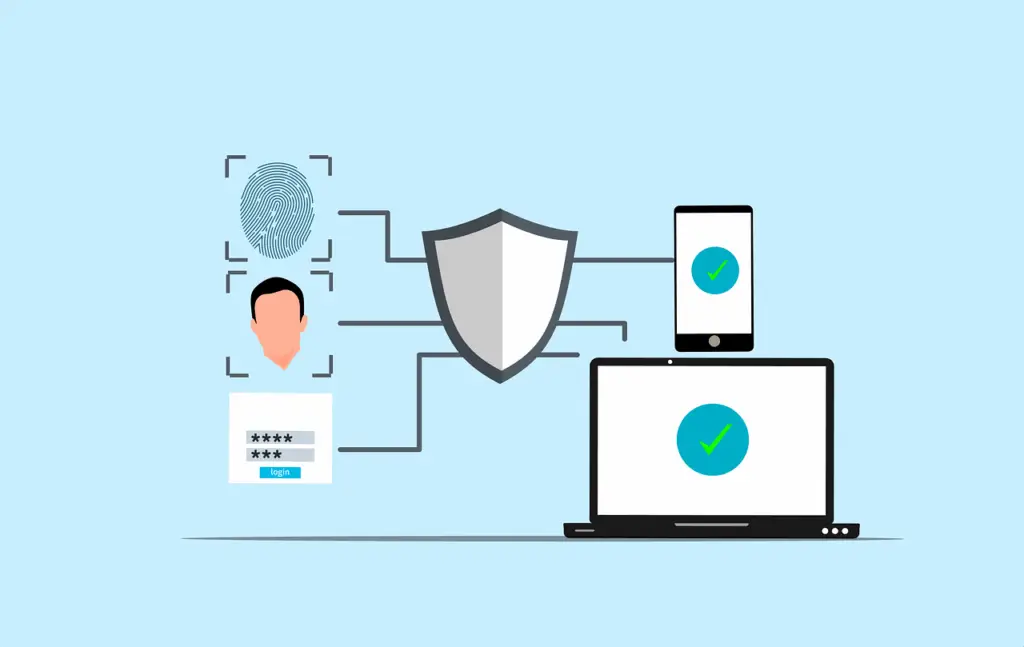
Multi-Factor Authentication is a login process that requires two or more verification factors instead of just one. These factors fall into three simple categories.
1. Something You Know
This is the most common factor and usually the weakest.
Examples include:
-
A password
-
A PIN
Passwords are easy to steal through phishing, malware, or reused credentials. That’s why they should never stand alone.
2. Something You Have
This factor proves you have access to a physical device.
Examples include:
-
A phone that receives a one-time code
-
An authentication app like Google Authenticator or Microsoft Authenticator
-
A hardware security key
Even if a password is stolen, an attacker usually cannot access this second factor.
3. Something You Are
This factor uses biometric data that is unique to you.
Examples include:
-
Fingerprint scans
-
Facial recognition
-
Voice recognition
Biometrics add strong protection because they are very difficult to copy or fake.
How to Implement MFA in Your Small Business
MFA does not need to be complicated. Breaking it into steps makes implementation much easier.
Step 1: Review Your Current Systems
Start by identifying where MFA is most critical. Focus on systems that hold sensitive data or control access.
Priority areas include:
-
Email accounts
-
Cloud platforms like Microsoft 365 or Google Workspace
-
Banking and financial systems
-
Customer databases
-
Remote access and VPNs
Protecting these first gives you the biggest security win.
Step 2: Choose the Right MFA Solution
Many MFA tools work well for small businesses. Choose one that fits your budget and is easy for employees to use.
Popular options include:
-
Google Authenticator – Simple and free
-
Duo Security – User-friendly with strong features
-
Okta – Scalable with many authentication options
-
Authy – Supports backups and multiple devices
Look for ease of use, strong security, and the ability to grow with your business.
Step 3: Enable MFA Across Critical Accounts
Once you choose a solution, roll it out in stages.
Start by:
-
Enabling MFA on email and cloud tools
-
Requiring MFA for all employees
-
Adding MFA to remote access tools and VPNs
Make MFA mandatory. Optional MFA often goes unused.
Step 4: Train Your Team
MFA only works if people know how to use it.
Provide:
-
Simple setup instructions
-
Short training sessions
-
Clear guidance on why MFA matters
When employees understand that MFA protects both them and the business, adoption improves.
Maintain and Improve Your MFA Setup
Cybersecurity is not a one-time task. MFA should be reviewed and updated regularly.
Keep Authentication Methods Current
As new options become available, consider stronger methods like biometrics or hardware keys.
Review Access Needs Often
Employees change roles. Systems change. Review who needs MFA and where it is applied.
Respond Quickly to Lost Devices
If a phone or token is lost:
-
Disable it immediately
-
Reset MFA access
-
Issue backup codes or alternative verification
Clear policies prevent delays and reduce risk.
Test MFA Regularly
Test MFA to ensure:
-
It works as expected
-
Employees are using it correctly
-
It does not create usability issues
Security must be strong and practical.
Common MFA Challenges—and How to Solve Them
Employee Pushback
Explain that MFA protects jobs, data, and customers. Provide support during setup.
Integration Issues
Choose MFA tools with built-in support for common business apps.
Cost Concerns
Start with free or low-cost options and expand later if needed.
Device Management
Use apps that support multiple devices and cloud backups.
Why Now Is the Right Time to Enable MFA
MFA is one of the most effective steps you can take to protect your business. It blocks common attacks, reduces risk, and strengthens your overall security posture.
Start small. Protect key systems first. Train your team. Review often.
If you need help planning or implementing MFA, our team is ready to guide you with practical, business-friendly solutions.
Contact us today to secure your business and protect what matters most.