
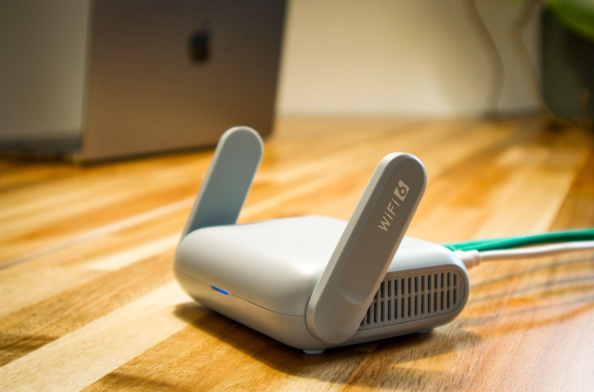
Offering free Wi-Fi to customers and visitors is a nice touch. But could their devices reach your business computers, printers, or security cameras?
Many small businesses have two Wi-Fi names. One is for staff. The other is for guests. That sounds safe, but two names and two passwords do not always mean the networks are separate.
The settings in your router, firewall, and Wi-Fi equipment must also block guest devices from reaching your business systems.
Here’s how to check whether your guest Wi-Fi is set up to protect your business.
What Does Separate Guest Wi-Fi Mean?
Guest Wi-Fi should give visitors internet access without giving them access to your internal network.
Guests should be able to check email, browse the web, and use online apps. They should not be able to connect to:
- Business computers and servers
- Office printers
- Shared files and backup devices
- Security cameras
- Building access systems
- Router and network settings
- Other devices on the guest network
The Australian Cyber Security Centre recommends keeping guest Wi-Fi separate from internal business networks.
You can still use one internet connection for both networks. The separation takes place inside your router, firewall, switches, and wireless access points.
Why Sharing One Network Can Put Your Business at Risk
You may trust your customers, staff, and contractors. But that does not mean you can trust every device they bring into your office.
A visitor’s laptop could have malware. Their phone might be missing key security updates. You have no way to know how well those devices are protected.
Being on the same network does not give someone instant access to your business files. Passwords and device security still matter.
But a connected device may be able to find or contact systems it should never need to use.
That could include a shared folder, office printer, storage device, camera, or network management page.
If a device has malware, it may also try to connect to other devices on the network.
Network separation helps block those connections. It limits which systems a device can reach, even if that device has been compromised.
The UK’s National Cyber Security Centre explains that dividing networks into separate sections can limit movement between systems.
Two Wi-Fi Names Do Not Always Mean Two Separate Networks
When you open the Wi-Fi menu on your phone, you may see two names. For example, your business might have one network for employees and another for guests.
Those names are called SSIDs.
A second SSID does not prove that the networks are isolated. Your equipment must also keep guest traffic away from your internal systems.
Many business networks use a virtual local area network, or VLAN, to separate guest devices. Firewall rules then block those devices from reaching private business systems.
Some small-business routers can do this through a built-in guest network setting.
Depending on your equipment, you may see settings such as:
- Guest network
- Network isolation
- Deny local network access
- Client isolation
- VLAN
- Guest firewall rules
The names vary by manufacturer. If you are not sure what these settings do, ask your IT provider to test the guest network.
The key question is simple: Can someone on guest Wi-Fi connect to anything on your business network?
Should Guests Be Able to Connect to Each Other?
In most cases, no.
Imagine two customers sitting in your waiting room. Both connect to your guest Wi-Fi. Neither needs to connect to the other’s phone or laptop.
A feature called client isolation can block those connections.
Your equipment may call it wireless isolation, peer-to-peer blocking, or Layer 2 isolation.
Client isolation and network separation are not the same thing.
Client isolation helps keep guest devices from communicating with each other. Network separation keeps guests from reaching your business systems.
A secure guest Wi-Fi setup should normally use both.
Where Should Employee Phones and Personal Laptops Connect?
Employees often bring their own phones and laptops to work. Those devices should not get full access to your business network just because they belong to a staff member.
If a personal phone only needs internet access, the guest network is usually a good choice.
The same goes for a personal laptop that does not need to reach internal systems.
If staff use personal devices for work, your business needs clear rules for those devices. This is often called a bring-your-own-device, or BYOD, policy.
Depending on what the device can access, it may need security software, encryption, device management, and specific access rules.
Company-owned devices that are managed by your business can use the internal network when they need it.
The goal is to give each device only the access it needs.
What About Smart TVs, Cameras, and Other Connected Devices?
Many offices have more connected devices than they realize.
These may include smart TVs, speakers, security cameras, thermostats, and digital displays.
Most need internet access. They do not need full access to your business computers.
A separate network for these devices can help keep them away from sensitive business systems.
Some small businesses place them on guest Wi-Fi. That can work in some cases, but not all.
For example, a camera may need to connect to a local recording system. A smart device may need to communicate with a phone or controller.
Your IT provider can help decide where these devices belong and which connections they need.
Five Ways to Check Your Guest Wi-Fi Security

You do not need to become a network expert to ask the right questions. Start with these five checks.
1. Check Which Devices Use Each Network
Business computers and managed equipment should use the business network when they need internal access.
Visitors and unmanaged devices should normally use guest Wi-Fi.
2. Confirm That Guests Cannot Reach Business Systems
Ask your IT provider to test whether a device on guest Wi-Fi can reach office printers, file storage, servers, cameras, or network management pages.
Those connections should normally be blocked.
3. Turn On Client Isolation
Check whether guest devices can communicate with one another.
If your equipment supports client isolation, enable it to help keep visitors’ devices separate.
4. Review Wi-Fi Passwords and Encryption
Use a different password for guest Wi-Fi and business Wi-Fi.
The Australian Cyber Security Centre recommends WPA3 security where possible. WPA3 transition mode can help when older devices need support. WPA2 remains an option when WPA3 is not available.
A strong guest password controls who can connect. It does not replace proper network separation.
5. Keep Network Equipment Updated
Check that your router, firewall, and access points have current firmware.
Turn on automatic updates when supported. Replace default administrator passwords and retire equipment that no longer receives security updates.
Test guest access again after any major network change or equipment replacement.
Do You Need a Second Internet Connection for Guest Wi-Fi?
Usually not.
Most small businesses can use one internet connection for staff and visitors.
A suitable router or firewall can keep the networks separate while allowing both to reach the internet.
You can also limit guest Wi-Fi speeds so visitors do not use all your available bandwidth.
Older or basic routers may have limited guest network features. Some show a guest Wi-Fi option but do not provide the level of isolation your business needs.
Check the equipment’s documentation or ask your IT provider to confirm the setup.
Why Your Guest Wi-Fi Needs Its Own Password
Never give visitors your main business Wi-Fi password.
Once someone knows that password, they may be able to reconnect later. If you need to change it, you may also have to update every company device.
A separate guest password is easier to manage.
You can change it after a large event, when a contractor no longer needs access, or when too many people know it.
Just remember that a separate password is only one part of the setup. The network itself must also be isolated.
Frequently Asked Questions About Guest Wi-Fi Security
Is a Guest Wi-Fi Password Enough to Protect My Business?
No. A password controls who can join the guest network. Your router and firewall must also stop guest devices from reaching internal business systems.
Can Guests Share the Same Internet Connection as Employees?
Yes. You can use one internet connection while keeping business and guest networks separate through your networking equipment.
Should Employees Use Guest Wi-Fi on Their Personal Phones?
Usually, if they only need internet access. Personal devices that need access to company systems should follow your business’s device security and access rules.
Can Visitors Print to an Office Printer?
Guest access to office printers should normally be blocked. If visitor printing is needed, your IT provider can set up a controlled way to allow it without opening the rest of the network.
Does Guest Wi-Fi Stop Cyberattacks?
No. It helps reduce unnecessary access and can limit which systems an infected device can reach.
Your business still needs strong passwords, multifactor authentication, software updates, endpoint protection, backups, and suitable access controls.
Make Sure Your Guest Wi-Fi Is Actually Protecting Your Business
Guest Wi-Fi should make life easier for visitors without adding risk to your business systems.
Two Wi-Fi names and two passwords are a good start, but they do not prove that your networks are separate.
Ask your IT provider to confirm that guest devices cannot reach your computers, printers, servers, cameras, or other internal equipment.
If you do not have an IT provider, Caldera Cybersecurity can help you review your setup and make sure visitors have the internet access they need without unnecessary access to your business network.
Sources and Further Reading
- Australian Cyber Security Centre: Secure Your Wi-Fi and Router
- Cisco Meraki Small Office Reference Architecture
- CISA: Federal Mobile Workplace Security Guidance