How long should a business computer last? For many office computers, three to five years is a practical replacement range. But age alone should not decide when a laptop or desktop needs replacing.
The right time depends on security support, reliability, performance, warranty coverage, repair costs, and the work the employee needs to do.
Most business computers do not fail all at once. A laptop may still handle email and documents but take longer to start, struggle during video calls, or run out of battery halfway through the day.
Some computers need replacing sooner because they cannot run a supported operating system or important business software. Others may remain useful beyond five years, especially for basic office work.
The goal is not to replace every computer at the same age. It is to know when keeping an older device starts to cost your business more than replacing it.
How Often Should a Business Replace Its Computers?
For many small businesses, a three-to-five-year computer replacement cycle is a useful starting point.
Start reviewing each device when it reaches three years old. Then decide whether it should be replaced soon or kept for another year or two.
Business computer manufacturers often plan around shorter replacement cycles. Intel’s PC refresh program allows employees using computers older than three years to select a replacement suited to their work. Dell has also recommended refreshing business computers every three to four years.
These are planning recommendations, not fixed expiration dates. A secure, reliable three-year-old laptop does not need to be replaced just because of its age.
At the three-year mark, review:
- Operating system and security update support
- Software compatibility
- Employee workload and performance needs
- Battery condition
- Warranty coverage
- Repair history and support costs
If the computer is likely to remain suitable for another year, record the next review date. If several problems have appeared, include it in the next replacement order.
Reviewing computers early gives your business time to plan purchases instead of waiting for equipment to fail.
Security Support Should Be Your First Priority
Before looking at speed or battery life, confirm that the computer can run an operating system that still receives security updates.
When an operating system reaches the end of support, newly found security flaws may no longer be fixed. Security software can provide some protection, but it cannot correct every weakness in an unsupported operating system.
The Australian Cyber Security Centre recommends removing or replacing unsupported operating systems and network equipment. The UK National Cyber Security Centre also warns that obsolete products increase the risk of compromise.
A computer can work perfectly well and still need replacement because its hardware cannot support a current operating system.
Some software vendors offer temporary extended security updates after normal support ends. These programs can give businesses more time to replace equipment, but they are not a permanent solution.
Ask your IT provider to review operating system support at least once a year. They should also check whether each computer can run future software versions before the current system reaches its support deadline.
Match Computer Performance to the Employee’s Work
Not every employee needs the same computer.
Someone who mainly uses email, documents, and browser-based applications may be comfortable with an older device.
Someone working with large spreadsheets, design files, video, engineering software, or several applications at once may need newer hardware.
Review performance while employees complete their normal work.
Warning signs include:
- Applications regularly taking too long to open
- Unstable video calls
- Frequent freezing or slow response times
- Employees having to close programs before opening others
- Regular delays that interrupt daily work
Ask employees how often their computers slow them down. A slow startup once a week is different from delays throughout the day.
Software requirements also change. Accounting systems, security tools, browsers, and industry applications may stop supporting older processors or operating systems.
Check hardware requirements before renewing important software or moving to a new platform. This helps you identify computers that may need replacing before the change takes place.
Check Why a Computer Is Slow Before Replacing It
A slow computer is not always an old computer.
Poor performance can come from:
- A nearly full storage drive
- Too little memory
- Unnecessary startup programs
- Malware
- Overheating
- Operating system problems
- A failing storage device
Ask your IT provider to find the cause before approving a replacement.
Maintenance, a software repair, more memory, or a new storage drive may restore normal performance.
But consider the computer’s remaining useful life. Spending money on upgrades may not make sense if the device will soon lose security support or several other parts are failing.
Compare Repair Costs With the Cost of Replacement
One repair does not always justify replacing a computer. Repeated repairs can change the decision.
Unexpected shutdowns, failed updates, charging problems, damaged ports, storage errors, and recurring software issues can make a device unreliable.
Review support requests for each computer. Add up repair bills, IT support charges, and the time employees could not work normally.
A repair may cost less than a new computer. But if another problem is likely to follow, keeping the device may provide poor value.
The employee’s role also matters. A computer failure can be especially disruptive for someone who travels, meets customers, processes payments, or performs work that cannot quickly move to another device.
A prepared spare computer can reduce downtime. Make sure it still receives updates, runs required software, and is checked regularly.
Review Warranties and Replacement Parts
A computer does not automatically need replacing when its warranty expires.
However, once the warranty ends, your business may need to pay for repairs and wait longer for service.
Before the warranty expires, check:
- Whether extended coverage is available
- What repairs the warranty covers
- How quickly the manufacturer provides service
- Whether replacement parts are still available
- Whether extended coverage is worth the cost
Manufacturers have different support and parts policies. Check the exact model rather than relying on a general rule for the brand.
Parts availability matters even more if your business does not keep spare computers. A simple repair can cause days of downtime when a component must be ordered.
Can Replacing a Laptop Battery Extend Its Life?
Yes. A battery replacement may help an otherwise reliable laptop remain useful.
Laptop batteries lose capacity with age and use. A device that once lasted most of the day may eventually need to stay connected to a charger.
That may not matter to an employee who works at a desk. But it can make the laptop unsuitable for someone who travels or works at customer locations.
Replacing the battery may be worthwhile when the laptop still receives security updates, performs well, and has no major reliability problems.
Check the complete repair cost and parts availability first.
Stop using a laptop if its battery is swollen, unusually hot, or changing the shape of the case. Have it inspected by someone qualified to handle damaged batteries.
Should You Upgrade or Replace an Old Business Computer?
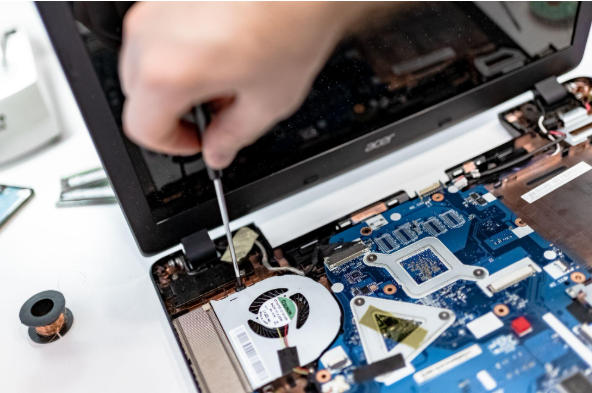
Some computers can be improved with more memory, new storage, or a replacement battery. Others have parts that are difficult or too expensive to replace.
An upgrade may make sense when one component is causing the problem and the computer still has several years of security and software support ahead of it.
For example, additional memory may help an employee who regularly uses several large applications.
Before approving an upgrade, include the cost of:
- Replacement parts
- Installation
- Data backup
- Testing
- IT support time
Compare that total with the cost and expected useful life of a new computer.
A replacement usually comes with a new warranty and may be easier to manage. But an upgrade may still be the better option when it solves a specific problem at a reasonable cost.
Can Older Computers Be Reassigned to Other Employees?
Sometimes a computer that no longer suits one employee can still work well in another role.
A device previously used for design or data work might be suitable for someone who mainly uses email and browser-based applications.
But it must still receive security updates, support the required software, and remain reliable.
Before reassigning a computer:
- Remove the previous employee’s data and accounts
- Configure the device for its new user
- Install current updates
- Check for hardware and software problems
- Update the asset inventory
Do not reassign unsupported computers or devices that already cause regular IT problems. Moving them to another employee only delays the replacement.
How to Create a Business Computer Replacement Schedule
A replacement schedule helps small businesses avoid sudden equipment expenses.
Start with an inventory of every laptop and desktop computer.
For each device, record:
- Purchase date
- Manufacturer and model
- Assigned employee
- Warranty expiration date
- Operating system and support status
- Repair and support history
- Expected review date
- Planned replacement year
When a computer reaches three years old, review its security support, software compatibility, performance, battery, warranty, and repair history.
Assign a replacement year based on those findings.
Review that date again if an employee changes roles, software needs increase, or the operating system’s support timetable changes.
Spreading purchases across several budget periods is often easier than replacing many computers in one year.
It also gives your IT provider time to order, configure, and test the new equipment.
Standardize Business Computers Where Practical
Using a small number of approved computer models can make equipment easier to manage.
Employees may be able to share compatible chargers, docking stations, and accessories. Your IT provider can also maintain consistent security settings and prepare spare devices more quickly.
Different roles may still need different hardware. A basic office laptop will not always meet the needs of someone working with design, video, or specialist technical software.
Prepare the New Computer Before Retiring the Old One
Replacing a computer involves more than moving a laptop onto someone’s desk.
Back up or transfer the employee’s business data before removing the old device.
Confirm that the new computer has everything needed for daily work, including:
- Email and documents
- Bookmarks and browser settings
- Business applications
- Printers and shared folders
- Multifactor authentication
- Specialist software
Test access before the employee begins relying on the new device.
Once the move is complete, remove the old computer from device management, security monitoring, backup systems, and trusted-device lists.
Cancel or reassign licenses linked to the old computer and update the asset inventory.
Keeping the old device for a short transition period may help. Leaving it connected and unmanaged for months creates another security and maintenance risk.
Securely Remove Business Data Before Disposal
Deleting files or removing an employee account does not guarantee that all business information has been erased.
Before a computer is sold, donated, recycled, returned, or discarded, its storage should be properly sanitized.
The right method depends on the storage technology, encryption, and sensitivity of the information.
NIST Special Publication 800-88 Revision 2, published in September 2025, provides guidance on selecting appropriate media sanitization methods.
The Australian Cyber Security Centre also recommends backing up information you need to keep, unlinking accounts, removing removable media, and erasing the device.
Businesses handling sensitive information may need a professional data-destruction service.
Keep a disposal record with the computer’s asset number, serial number, disposal date, and the method used to remove its data.
Six Questions to Ask Before Replacing a Business Computer
Use these questions during your next computer review:
- Can the computer run an operating system that still receives security updates?
- Does it support the software the employee needs?
- Does it handle normal work without regular delays?
- Has it required repeated repairs or IT support?
- Is it covered by a suitable warranty, or are replacement parts available?
- Would an upgrade provide enough useful life to justify its cost?
If the computer fails the security or software support checks, plan to replace it.
For performance and repair problems, compare the cost of fixing the device with the likely cost of keeping it for another year.
Frequently Asked Questions About Business Computer Replacement
How Many Years Should a Business Laptop Last?
Three to five years is a practical planning range for many business laptops. Replace one sooner if it becomes unreliable, cannot receive security updates, or no longer meets the employee’s needs. A supported laptop may remain useful longer in a less demanding role.
Should Every Business Computer Be Replaced at the Same Age?
No. Review computers based on their condition and use. A laptop carried between customer sites every day may need replacement sooner than a desktop used occasionally for basic office work.
Is a Slow Computer Always Ready for Replacement?
No. Low storage, insufficient memory, malware, overheating, or an operating system problem may be responsible. Have the cause checked before deciding whether to repair, upgrade, or replace it.
Should a Computer Be Replaced When Its Warranty Ends?
Not automatically. Review its condition, security support, repair history, importance to the employee, and the availability of spare equipment. Warranty expiration is a good time to perform that review.
Can an Old Computer Be Kept as a Spare?
Yes, provided it remains supported, reliable, updated, and properly managed. Check spare computers regularly and confirm they can still run the software employees need.
Can a Business Sell or Donate an Old Computer?
Yes, but all business data must be removed first. Use a suitable data sanitization process and keep a record showing how and when the computer was disposed of.
Plan Computer Replacements Before They Become a Problem
Replacing business computers does not have to mean buying new equipment every three years.
Start reviewing devices after three years. Check their security support, performance, reliability, warranty coverage, and repair costs. Then decide which computers can stay in service and which need replacing.
A clear replacement schedule can help your business avoid surprise expenses, reduce downtime, and keep employees working with equipment that meets their needs.
Ask your IT provider to review the age, support status, and condition of your business computers. If you don’t have an IT provider, contact Caldera Cybersecurity. We can help you understand what needs attention and plan your next steps.
Sources and Further Reading
- Guidelines for System Management: Australian Cyber Security Centre
- Obsolete Products: UK National Cyber Security Centre
- Managing the Risks of Legacy IT: Australian Cyber Security Centre
- NIST SP 800-88 Revision 2: Guidelines for Media Sanitization
- Secure Your Devices and Device Disposal Guidance: Australian Cyber Security Centre